ANDHRA PRADESH STATE COUNCIL OF HIGHER EDUCATION
HYDERABAD
EAMCET-2012(ADMISSIONS)
WEB BASED COUNSELLING
FOR ADMISSION INTO ENGINEERING & PHARMACY
INSTRUCTIONS TO CANDIDATES
Every Candidate attending for Certificate Verification at Help-line Centre is requested to follow the stages as
indicated below:
Stage-1:
Candidate Registration for Certificate verification:
?
Wait for the announcement from authorities of Help Line Centres for Registration.
?
After announcement, hand over the rank card to officer at entrance.
?
Wait for your turn in the registration hall.
?
When your rank is called pay processing fee and obtain receipt, furnish your mobile
number.
?
Collect the Registration-Cum-Verification form from computer operator at Registration
counter and verify whether your mobile number is printed correctly or not.
?
Collect the Scratch Card, retain with you as it is required for Option Entry.
?
Enter details i.e. hall ticket number, rank etc. in the Register and append your signature.
?
Your registration is completed. Go back and wait in the registration hall for
announcement.
?
After announcement by the officer at Registration counter, report at Verification counter
for certificate verification.
STAGE 2:
Verification of Certificates:
?
Verify the details printed on Registration-Cum-Verification form for local area, sex,
Minority, category, Special Reservation category, date of birth, Scratch Card Number,
Mobile Number, Fee Reimbursement Eligibility etc. for correctness.
?
If there is any mistake, report to verification officer for correction.
?
If you belong to SC/ST/BC Category, report to Caste Verification officer and submit the
original Caste Certificate for verification and clearance. After Caste verification report to
one of the Certificate verification officers.
?
If you belong to Open Competition (OC) Category, directly report to Certificate verification
officer.
?
The Officers will verify all your original certificates like Rank Card, Hall ticket, Marks
memo, Study certificate, income certificate etc.
?
A Print out of Receipt of certificates will be given to you and if you find any discrepancy,
report to the Chief Verification Officer for correction. Append your signature after verifying
the data.
Seat allotment process depends on the accuracy of the data. Ensure for
correctness of the data in the fields: Local Area, Sex, Minority, Category
?
(BC/SC/ST), Special reservation category
(PH/CAP/NCC/Sports), Fee
reimbursement eligibility (Yes/No) (You are also jointly responsible for ensuring the
Correctness of data. No request for alteration of data will be allowed after the time for
exercising options is over).
?
Proceed to the Briefing Hall to take instructions on exercising options.
STAGE 3:
Instructions for Exercising Options:
?
Exercising options means you have to select college and courses you wish to join and
arrange them in the order of priority.
?
Collect List
/Book containing colleges, courses and their codes, courses offered and
course codes, Manual option form and retain with you.
The Officer in Briefing Hall will explain the procedure of exercising options and filling of
Manual option form.
Page 1 of 8
STAGE 4:
Preparatory work to be made by you at home for exercising options:
Go through the College profile, availability of courses, duration of the course, prospects
(job/academic opportunities) after studying a particular course. Discuss and decide on
your interest on a particular course, distance from your place, availability of hostel, your
family background, financial ability to move away from your place. Arrive at a list of as
many numbers of possible options on a paper.
Also, consult your parents/friends on the selection of courses and Colleges you wish to
join.
Take the Manual option form fill in the district code, College code and course code you
wish to join in the order of preference against the option number.
Allotment of seats will be done based on Rank, Local Area, Gender, reservation category
etc., in the order of preference you have chosen.
MANUAL OPTION FORM
OPTION NUMBER
DISTRICT CODE
COLLEGE CODE
COURSE CODE
1
HYD
JNTH
CSE
2
HYD
OUCE
ECE
3
TPT
SVUC
MEC
4
VSP
AUCE
CIV
5
ATP
JNTA
CHE
Allotment will be made as per your choice of the option numbers depending upon the
number of vacancies available in a College and in a course for your sex, local area, and
category. If vacancy is not available in Option.No.1, Option.No.2 will be considered for
allotment, if vacancy is also not available in Option. No.2, Option.No.3 will be considered
for allotment and so on. The allotment will not proceed to the next rank candidate till the
list of your options is completely searched for availability of a seat. HENCE,
CANDIDATES ARE ADVISED TO ENTER MORE NUMBER OF OPTIONS TO AVOID
THE DISAPPOINTMENT OF NOT SECURING A SEAT.
It is not necessary to give options in a sequence all the courses in a particular college.
Candidates can enter any number of options of any College in any order of his choice.
Candidate is advised not to enter options for which he is not interested to join.
You may refer to data corresponding to Last ranks of previous year available in
For entering options on computer screen, filled-in manual option form is essential. It will
save your time and minimize your chance of making mistake in option entry on web.
STAGE 5:
Procedure to be followed for exercising options on web/Internet:
You can enter the options from home or from any internet café or from any Help Line
Center with the help of your filled- in manual option form.
You must have already completed certificate verification(Stage 1 and Stage 2).
Steps to be followed for entering the options on web:
1. Entering the URL through internet
2. Generation of password
3. Option entry
4. Log out
STEP 1: Entering the URL through internet
Double click on
(Internet Explorer).
Make sure that the computer which you are using contains windows operation system
Internet Explorer Version 6.0 to 8.0. It is possible to enter options only from such
systems having above versions. It is not possible to enter options on Net scape
navigator, Google chrome, Mozilla Firefox.
notification.
Page 2 of 8
You will find home page as shown below containing the links regarding the information
such as counseling procedure, list of courses, list of help line centers, college profile, etc..
STEP 2: Generation of Password
Importance of Password:
Password is important and shall be held confidentially. It is as important as the PIN of
ATM card.
Do not reveal it to anybody as it might enable modification/tampering of data.
Password is essential for Candidates Login, Entry of options, Change of options, saving
and deletion of options and for printing of allotment order.
Click on “Candidates Registration” to generate the password. Enter the details (Note:
Registration Number is printed on your Receipt of Certificate given to you after Certificate
Verification. Date of birth shall be entered in DD/MM/YYYY format).
Click on “Generate Password” button. The following screen appears.
Page 3 of 8
In the “Password” box enter the ‘password’ (having a minimum of 8 characters length
and maximum of 10 with at least one Numeral/Character for example EAMCET12,
krishna123, @#34BxMz56, 98765432H etc.)
Re-enter the same password at “Re-enter password” box.
Enter the mobile number and email id. These are optional. In case you forget the
password mobile number/email id is compulsory to communicate the changed password.
Click on “Save Password” to save the password.
Click on “Log Out”. With this candidate’s registration is completed and you will come
back to Home page.
You can change your password as well as reset the password (in case forgotten)
through Candidates login as explained in the following step.
STEP 3: Option Entry
Note: You are advised not to start entering options directly on the web without preparatory work
in the manual option form at home, as you may commit mistakes.
After completing the candidates registration and generation of password, click on Candidates Login for
exercising the options. The following screen appears.
Login ID
number is
present
in hidden
portion of
Scratch
Card
Page 4 of 8
Please do not give the Scratch Card containing Login ID. Number, password, date of birth, Hall Ticket
Number etc to anybody. Never write your password down on paper or anything else which could be
read by another person.
You are responsible for maintaining the confidentiality of your password and are responsible for any
harm resulting from your disclosure, or authorization of the disclosure of your password or from any
person’s use of your password to gain access to your Login ID. You will be solely responsible and
liable for any activity that occurs under your Login ID.
To enter your option entry screen, enter in Login ID. No
(Hidden on the Scratch Card).,Hall Ticket
No.,Password and Date of Birth (DD/MM/YYYY) and click on Sign In. The following screen appears.
Read the instructions carefully. Read the Declaration and click on Check Box
?
to confirm the same.
Click on “Option Entry Form” will navigate you to screen with check boxes with district names and
statewide institutions.
In case you need any explanation about different Menu items of the Option Entry form click on “Help
Screen”. Read the explanation about various menu items, and then click the button “Click here to Enter
Options”, it displays the screen with various districts along with check boxes.
Page 5 of 8
Select one or more districts or statewide institutions to display the Colleges in those districts
along with State wide Institutions.
Click on ‘Display Option Entry form? displays the screen for exercising the options.
In the Screen different colours are used for display of University Colleges, Girl Colleges, and
Minority institutions etc
Enter your EAMCET Hall ticket No. in the box provided.
By looking at already filled manual option form, enter the option numbers in the Boxes on the
Screen against the College and course in which you are interested to join as shown above.
WHILE FILLING THE OPTION FORM „Click on Save Options? AT REGULAR INTERVALS.
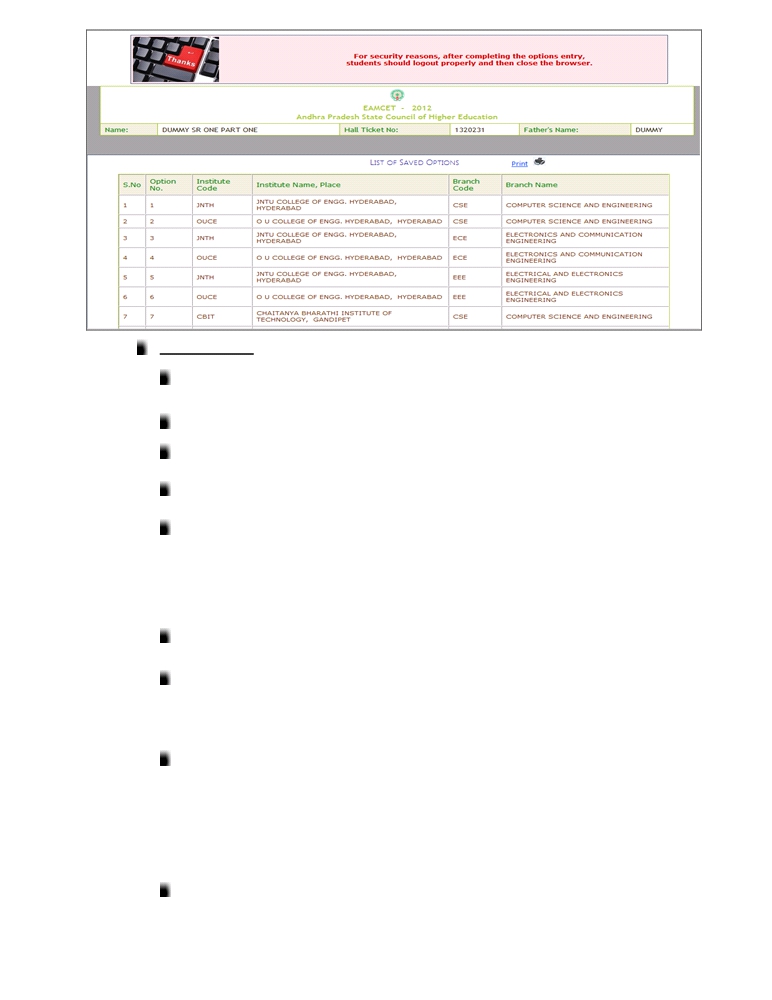
Click on View and Print button helps you to see the saved options and take a print out of the
same.
You can change your password if you wish so by using Change password Menu Button.
Page 6 of 8
STEP 4: Logout
AFTER COMPLETION OF Option entry click on “Logout”, IT DISPLAYS AN ALERT
MESSAGE WITH three BUTTONS “Save and Logout”, “Confirm Logout” and
‘Cancel Logout?.
Click on „Cancel Logout? retains the Options Entry Form for entry of some more
options.
Click on “Save & Logout” button will save the options exercised up to that point of time
and display the details of the options exercised.
Click on “Confirm Logout? button will directly display the details of the options saved up
to that instant.
You are informed that, you can add, modify or delete the options any number of times
within in stipulated time by repeating the above mentioned four steps. The options
recorded in the server on the last day will be frozen. If you wish to change the frozen
options once again, approach any one of help line centers on any one of the dates
mentioned to modify your frozen options. This is the final opportunity and after this no
further changes can be done. The Options recorded in the server on the last day will be
taken for allotment of seats. You can take a printout of the options exercised.
After the option entry and Logout from the Option entry form, close the browser.
Stage 6:
Final Allotment of Seats
The allotments will be processed on the date mentioned in the notification based on
merit, category, sex, Local area, special reservation category etc and will be placed in the
web. You have to download the allotment order through “Candidate Login”. This is
final allotment and request for change will not be entertained.
Stage 7:
Payment of Fees
Download the challan form for payment of fee or collect it from helpline centre. With
downloaded allotment order you have to remit the fees in one of the branches of Andhra
Bank or Indian Bank in the State and obtain a receipt. However, the SC/ST candidates
are eligible for reimbursement of Tuition fee if parental income from all sources is up to
rupees two lakhs per annum and all other category candidates whose parental income
from all sources is up to rupees one lakh per annum are eligible for reimbursement of
Tuition Fee and need not pay any amount through challan.
Stage 8:
Reporting at College:
With downloaded allotment order, fee receipt etc., you have to report at the respective
College in which seat is allotted within the date mentioned by the authorities. If you fail to
report on or before the date stipulated by the authority the allotment made in favour of
you will be treated as cancelled and you will have no claim further on the allotment.
Page 7 of 8
Stage 9:
Participating in Subsequent Phase(s) of Counseling (if any):
If you have not participated in previous phase(s) of Counselling, you can participate as a
fresh candidate by attending Certificate Verification at one of the HLCs.
If no seat is allotted in Previous Phase of Counselling, you can participate in subsequent
phase(s) of counselling, provided you got your certificates verified at the HLC.
If a seat is allotted in previous phase of counselling, and you are not interested to join in
the allotted college, you shall not report at the college/Pay the fee. You are entitled to
participate in the Web Counseling but will be eligible to join the New College/Course and
will have no claim on the previous allotment.
If you paid the fee and reported at the college, you can participate in the subsequent
phase(s) of Web Counseling. If a seat is allotted as per your option, you shall move to
the new allotment (College & Course) and will have no claim on the previous allotment
(College & Course).
Stage 10:
Process of Withdrawal:
At the end of the Counselling process, still if you want to withdraw/cancel the allotted
seat, you can do so before a stipulated cutoff date. Beyond this date, the Convenor will
have no say on your admission and is left to the discretion of the Principal of the
institution.
CTE & CONVENOR
EAMCET-2012 (ADMISSIONS)
? KEEP THREE SETS OF XEROX COPIES OF ALL CERTIFICATES.
? DO NOT HANDOVER YOUR ORIGINAL CERTIFICATES OR MONEY TO
UNAUTHORIZED PERSONS.
? DO NOT REVEAL YOUR PASSWORD TO ANYBODY INCLUDING YOUR
FRIENDS,RELATIVES OR PERSONS AT HLC OR PERSONS AT INTERNET
CAFES. ENTER THE PASSWORD IN THE SYSTEM BY YOURSELF.
? DO NOT BELIEVE THE WORDS OF PERSONS (MIDDLEMAN) ASSURING YOU
TO GET A SEAT IN A PARTICULAR COLLEGE AS ALLOTMENTS WILL BE
DONE PURELY ON MERIT.
? TAKE THE HELP OF STAFF WORKING AT HELPLINE CE NTERS IN CASE OF
ANY ASSISTANCE.
? CLOSE THE INTERNET BROWSER AFTER OPTION ENTRY AND LOGOUT
STEPS.
If you forget password what you have to do?
If you forgot password, click on the link forgot your password in Candidate’s Login and enter the
Registration number, Rank, EAMCET Hall ticket number and date of Birth and mobile number which you
have entered at the time of Candidate Registration. Now click on get new password. New password
generated by computer will be sent to your mobile number or to your email. After receiving the password
you can use it for Option Entry.
Page 8 of 8